Configuring Directional DNS
Completed
Vercara's Directional DNS provides origin-based routing in order to customize DNS query responses based on the geographic location of a DNS query's source IP address. This type of setup allows you to direct users to resources that are geographically close to them, reducing latency and increasing website/service performance.
Directional DNS is configured by creating a pool of Directional records when configuring a host name within a zone. Each Directional record defines a group (usually a geography but can also be a source IP range) and the DNS response for that group. In the UltraDNS portal, when you have a domain selected and are on the Records tab for that domain, click on + Add Pool for the record type you want to create a Directional pool for. Here I'm creating a Directional pool (of A records) for host dirpool.8-bit.games:
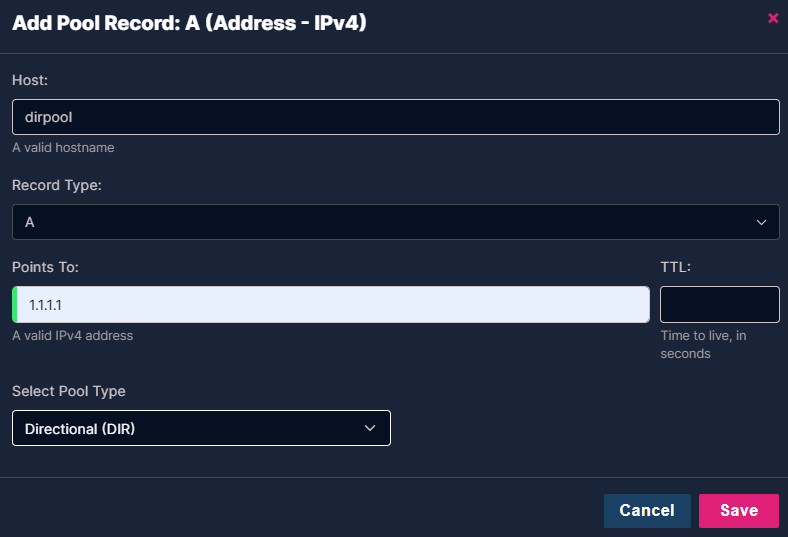 When I click Save I'm taken to the Directional pool configuration interface and a single All Non-Configured group is created for me with the IP address (1.1.1.1) that I provided. Note that I can select the Ignore ECS checkbox if I don't want UltraDNS to consider any EDNS0 client subnet IP information when determining the which group the source DNS request falls into:
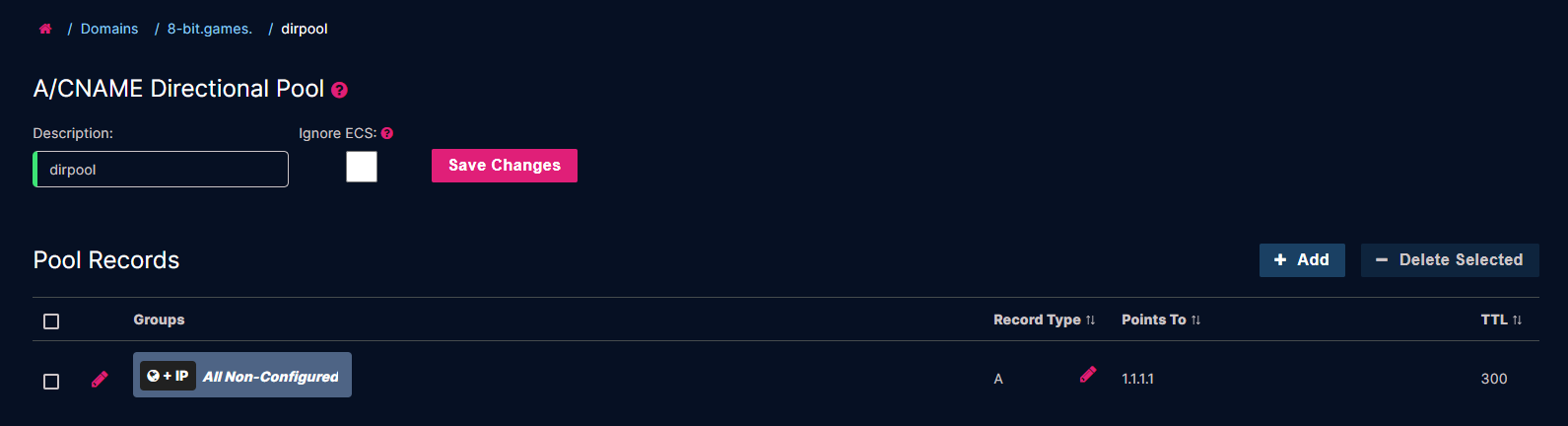
The configuration above is no different than a regular A record configuration (all DNS queries will get the 1.1.1.1 response). In order to provide differentiated responses based on a user's geography I need to add additional groups with the + Add button. Doing so allows me to first specify the record type/response that I want:
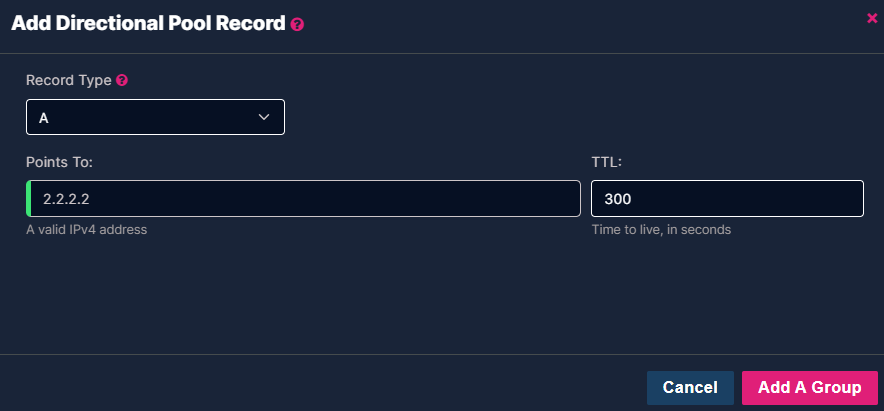
Then clicking on Add A Group provides an interface to either create a new group or use a pre-configured group. For this demonstration I'll use a pre-configured group. By default, an UltraDNS account does not have pre-configured groups and they will need to be created before you can use this feature. Setting the group for this directional record involves specifying:
- Add Directional Group - We will set this to Geolocation but an alternative option is Source IP.
- Type - Set to Assign Global Group which will cause the configuration interface to change slightly. If you do not have pre-configured groups then you'll need to define the groups in the UI.
- Group Name - Select the pre-configured group name. In the example below we have Americas, US East, and US West. For this example I'll highlight Americas.
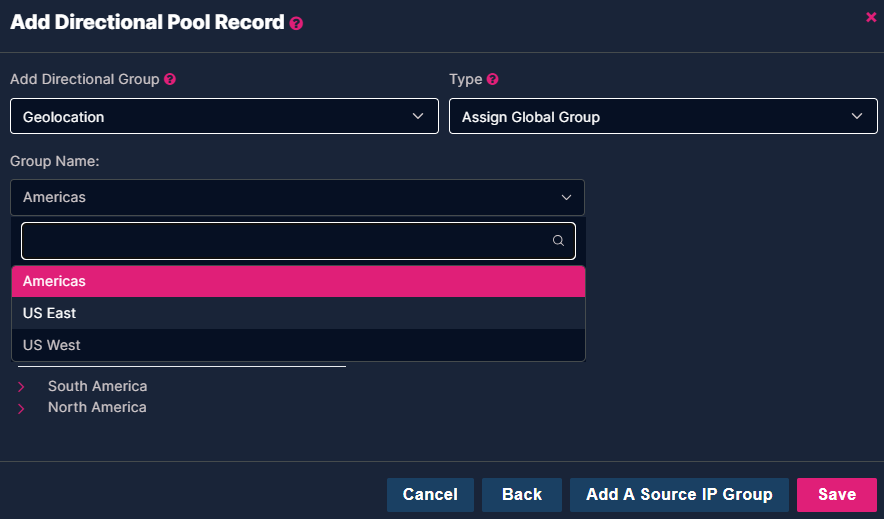
Click on Save to add the new Directional record:
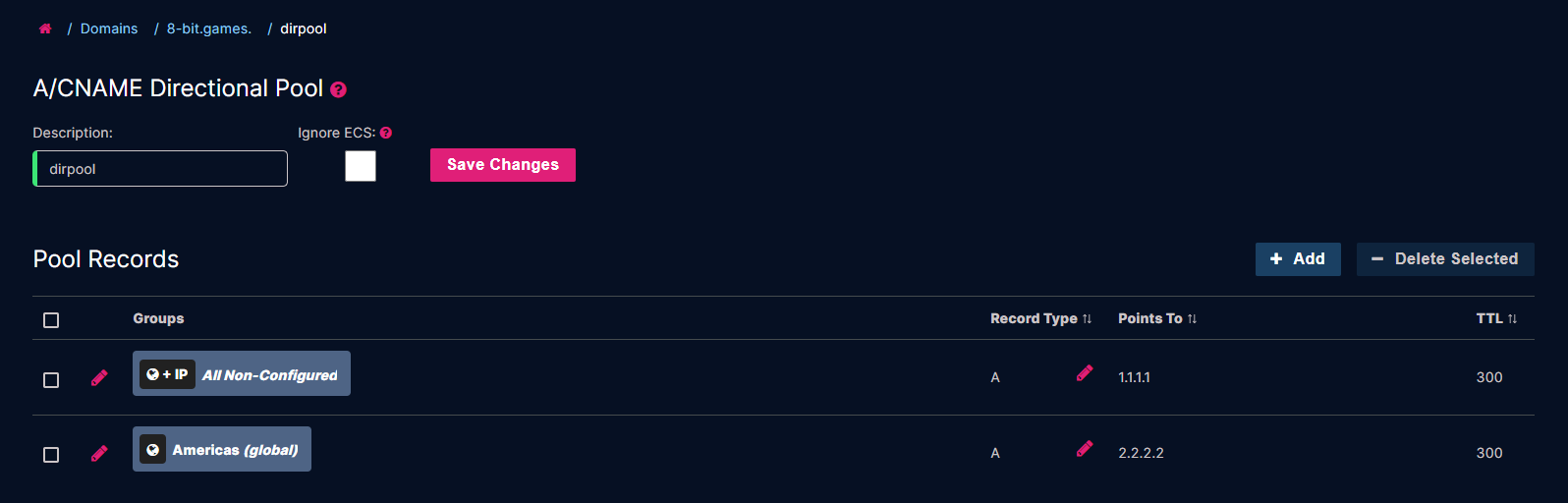
I now have two potential answers to return for queries to dirpool.8-bit.games:
- Americas - This pre-configured group is defined as countries and states in North America and South America. Any source IP addresses that are geolocated to those regions will receive the 2.2.2.2 response.
- All Non-Configured - This group is automatically adjusted as other groups are added to the pool. When the Directional pool is first configured, all regions are in this group. When a region (or country/state) is configured in a different group, it is removed from the All Non-Configured group. Any source IP address that is geo-located to a place outside North America and South America will receive the 1.1.1.1 response.
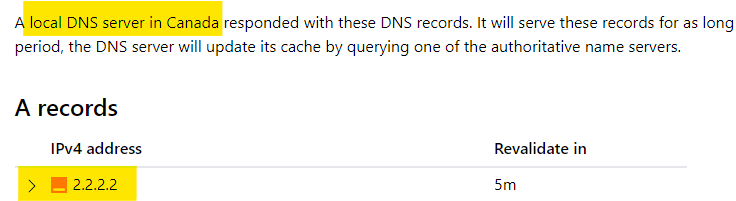
Click on Save Changes after you've added all your pool records. DNS responses to dirpool.8-bit.games will now vary depending on the geographic source of the queries. From Canada:
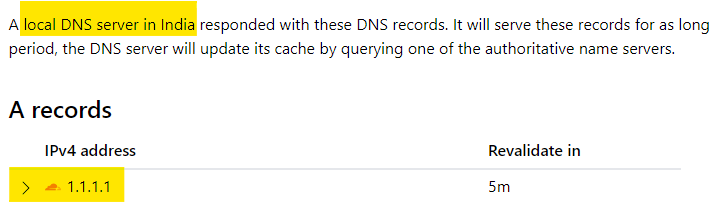
And from India: